
Home Widgets
Ente Photos offers home screen widgets that display your photos directly on your phone's home screen. Widgets automatically refresh with new photos from your library, bringing your memories to life throughout the day.
NOTE
Home widgets are available on mobile apps only (iOS and Android).
Widget Types
Ente provides three types of home screen widgets:
Memories Widget
Displays photos from your memories, including:
- On This Day: Photos from the same date in previous years
- Past Years: Memories from past years
- Smart Memories: AI-curated memorable moments
The Memories widget automatically rotates through your memories, surfacing nostalgic moments right on your home screen.
Albums Widget
Shows photos from your selected albums. By default, it displays photos from your Favorites album, but you can customize which albums to include.
People Widget
Displays photos featuring selected people from your library. This widget helps you keep photos of your loved ones front and center.
Requirement: The People widget requires face recognition to be enabled. You must first enable machine learning and allow face recognition to detect and group people in your photos.
Adding Widgets to Your Home Screen
On iOS
- Long press on your home screen until apps start jiggling
- Tap the + button in the top left corner
- Search for "Ente" or scroll to find Ente Photos
- Choose the widget type (Memories, Albums, or People)
- Select your preferred widget size
- Tap Add Widget
- Position the widget and tap Done
On Android
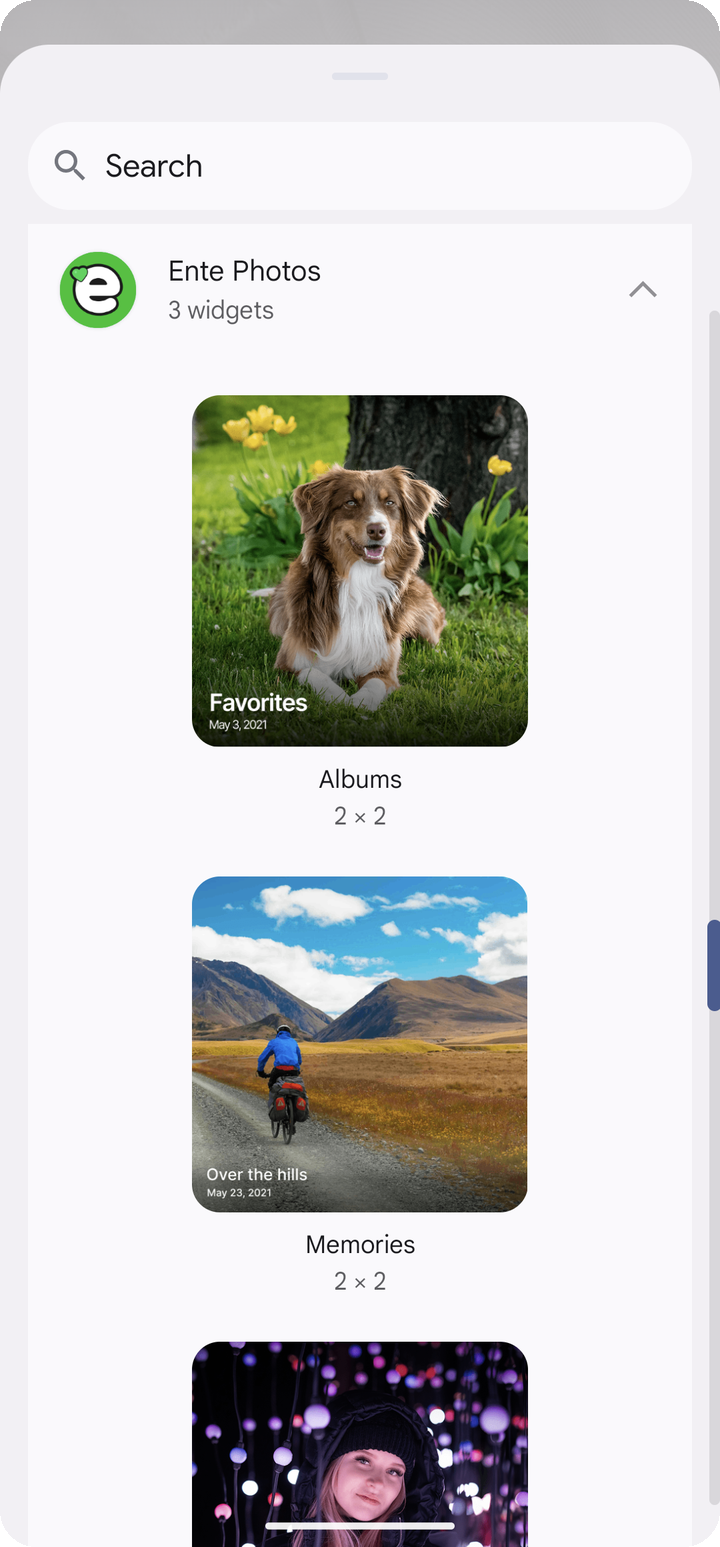
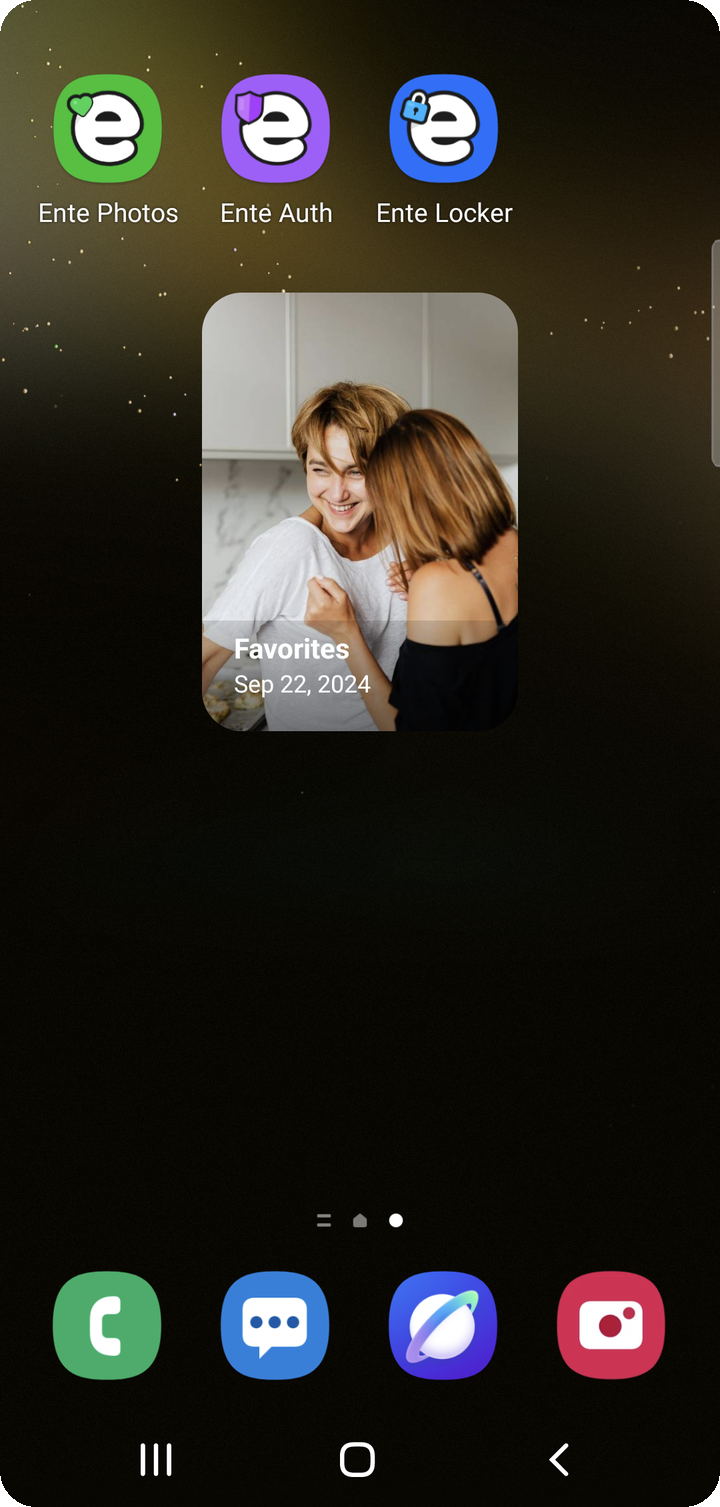
- Long press on an empty area of your home screen
- Tap Widgets
- Find and expand Ente Photos
- Long press your desired widget and drag it to your home screen
- Resize the widget if needed
Configuring Widgets
If a widget has not been configured yet, tap it on your home screen to open its customization screen directly in Ente. You can also configure widgets from the app settings.
Widget Settings
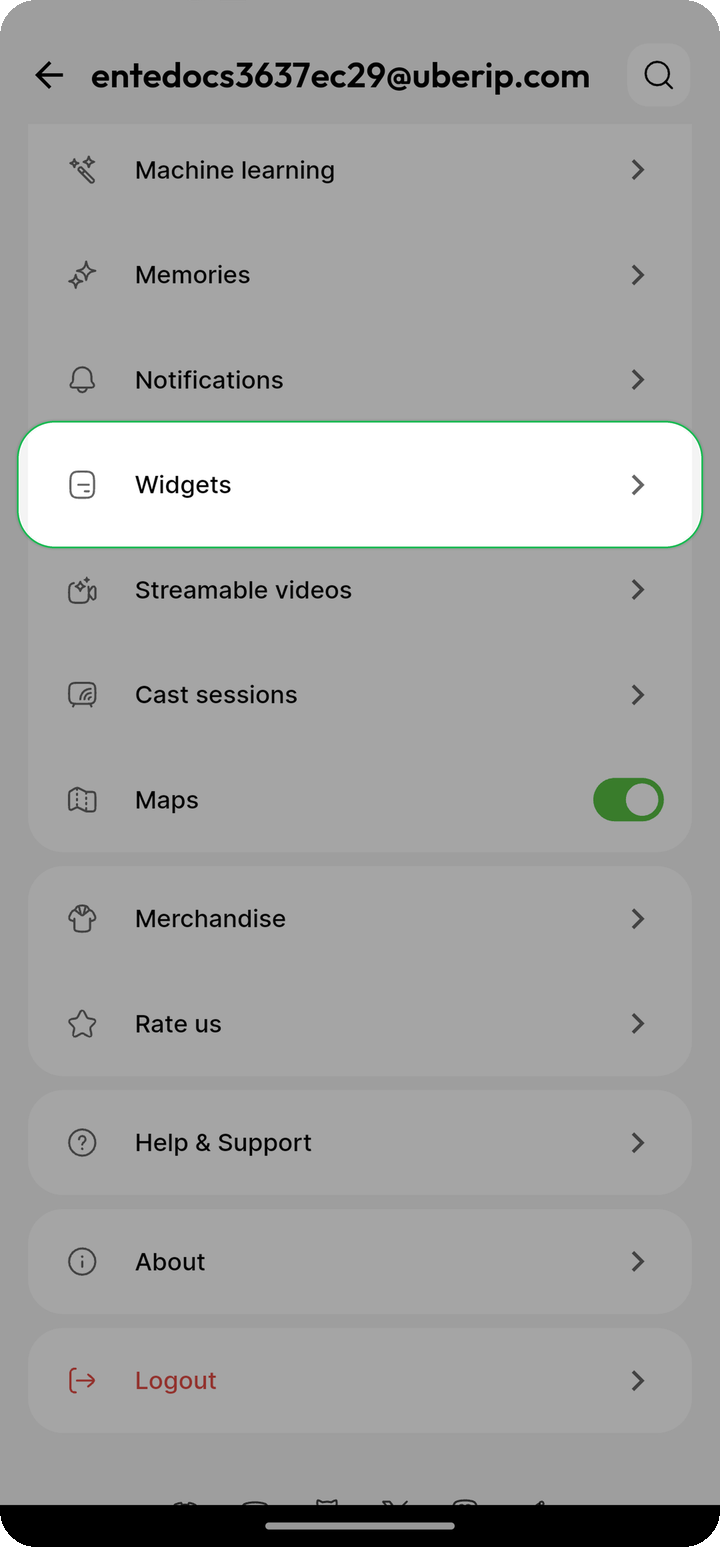
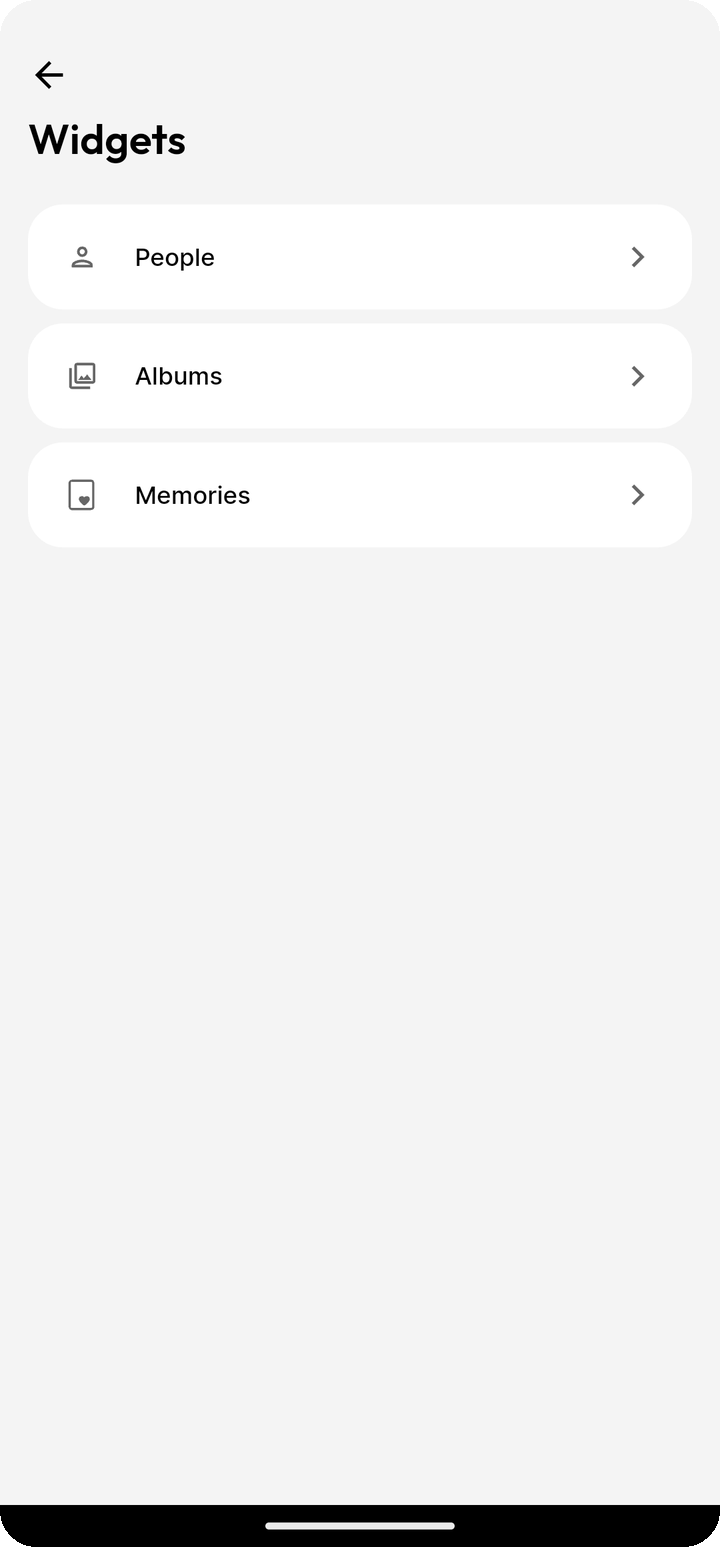
Open Settings > Widgets in the Ente app to configure your widgets.
Configuring the Albums Widget
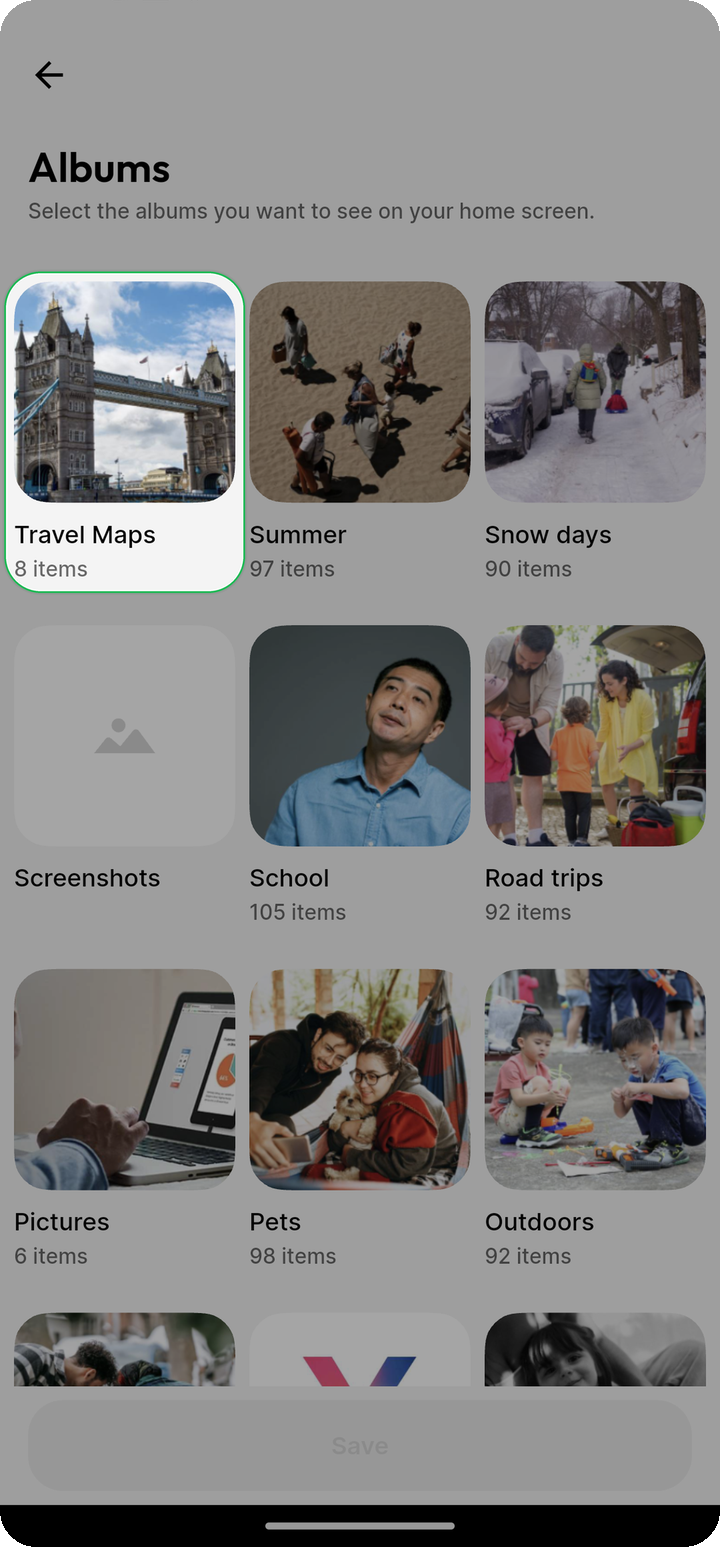
- Open
Settings > Widgets > Albums widget - Select which albums you want to display on your home screen
- By default, the Favorites album is selected
- You can select multiple albums to include more variety
Configuring the People Widget
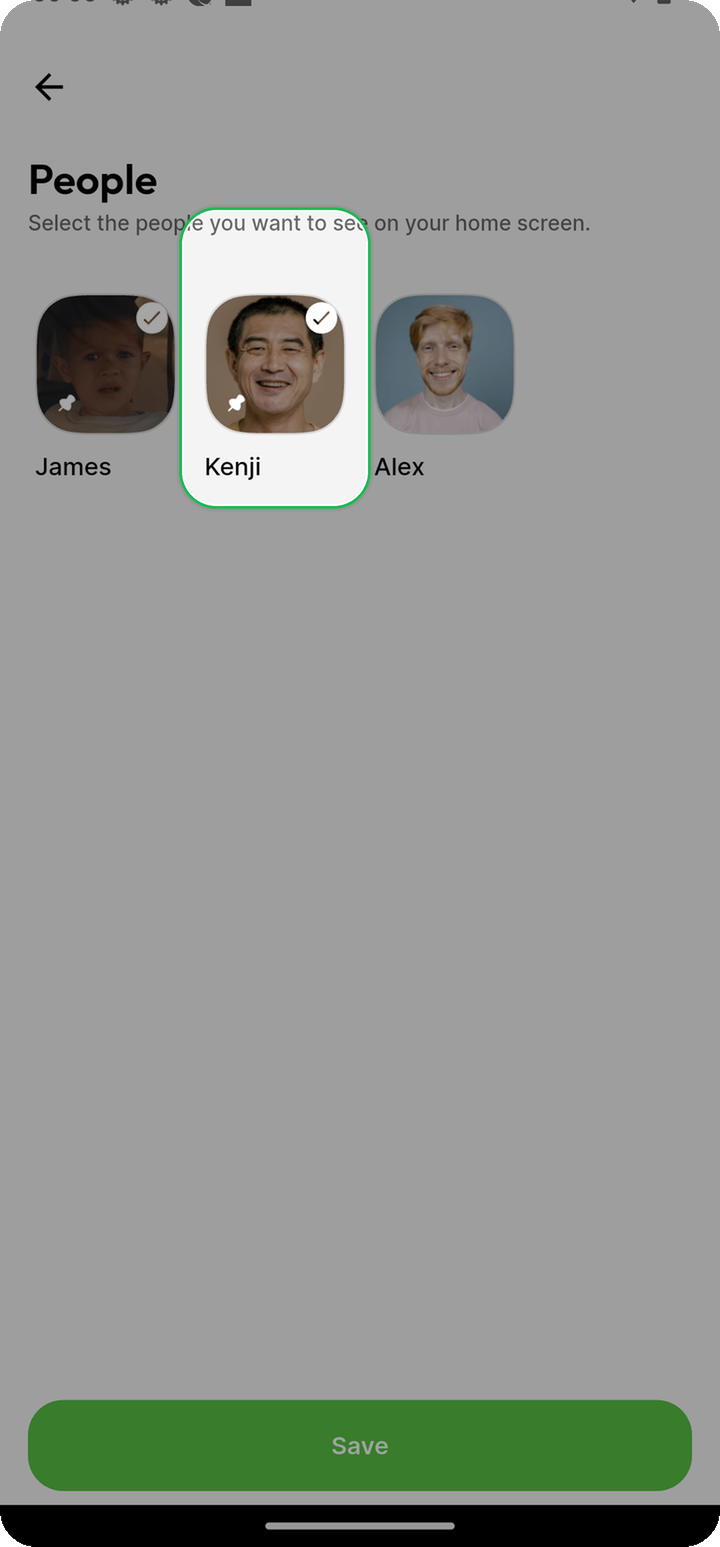
- Open
Settings > Widgets > People widget - Select which people you want to feature
- Only people detected by face recognition will appear as options
NOTE
You must enable face recognition before configuring the People widget.
Configuring the Memories Widget
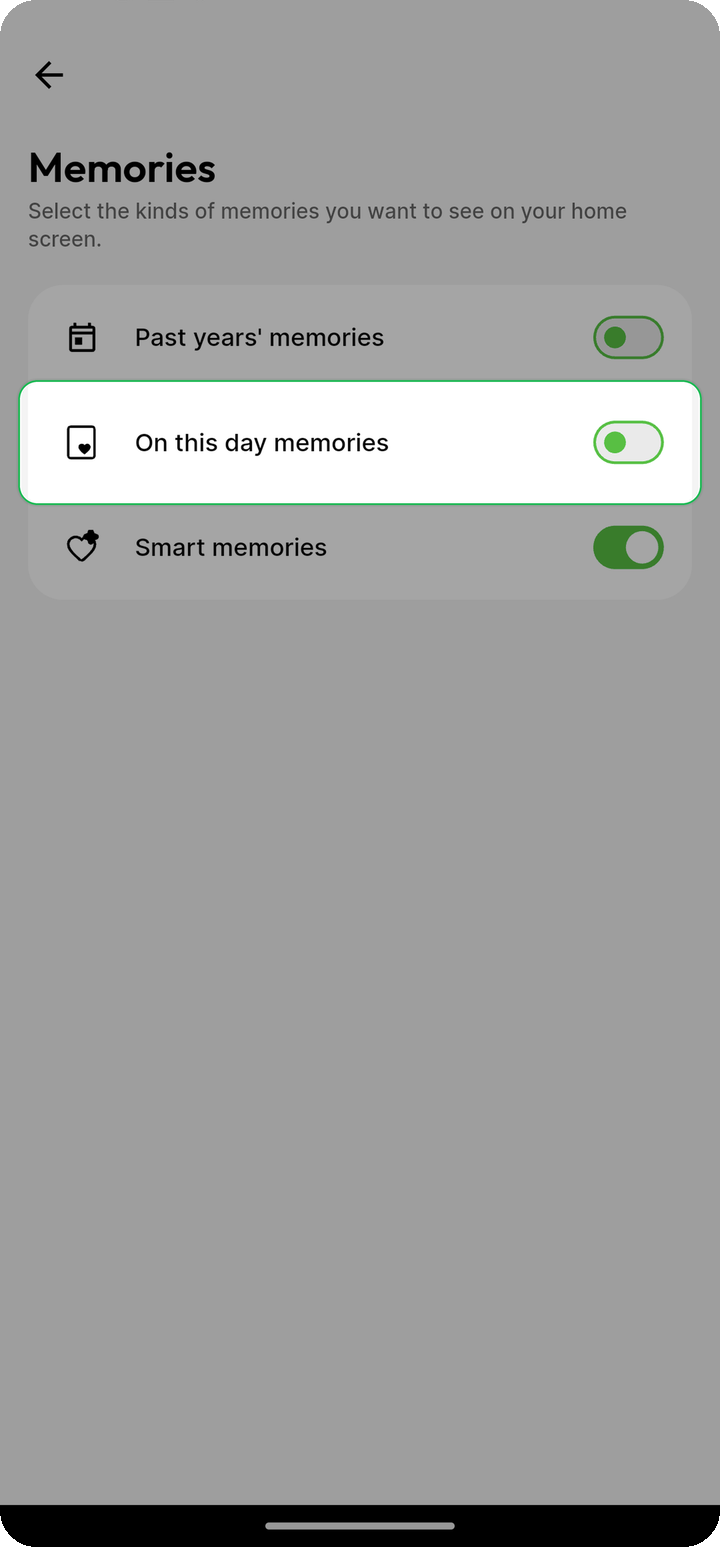
- Open
Settings > Widgets > Memories widget - Toggle which memory types to include:
- On This Day: Photos from this date in previous years
- Past Years: Yearly memories
- Smart Memories: AI-curated memorable moments
How Widgets Work
Data Synchronization
Widgets sync photos from your Ente library to your device's widget storage:
- The app selects photos based on your widget configuration
- Thumbnails are rendered and cached locally (512px resolution)
- Up to 50 photos are cached per widget type
- Widgets read from this local cache to display photos
- The album widget cache is periodically rebuilt to rotate in more photos from your selected albums
Automatic Refresh
Widgets automatically refresh approximately every 15 minutes from their local cache. For album widgets, the app periodically refreshes that cache so a broader set of selected album photos can appear over time.
Tapping Widgets
When you tap a photo on a widget:
- The Ente app opens directly to that photo
- For Memories widgets, you'll see the memory collection
- For Albums widgets, you'll see the photo in its album context
- For People widgets, you'll see photos of that person
Tips for Best Experience
Ensure Photos Are Backed Up
Widgets display photos that are backed up to Ente. Make sure your photos are synced for the best widget experience.
Enable Face Recognition Early
If you want to use the People widget, enable face recognition in advance so the app can detect and group faces in your photos.
Open Settings > Machine learning and enable face recognition.
Keep the App Updated
Widget improvements are released regularly. Keep the Ente app updated for the best performance and new features.
Add Favorite Photos
The Albums widget defaults to your Favorites album. Add photos to Favorites by tapping the heart icon on any photo. This ensures your most cherished photos appear on your home screen.
Platform Availability
| Platform | Home Widgets |
|---|---|
| iOS app | ✅ Supported |
| Android app | ✅ Supported |
| Desktop app | ❌ Not available |
| Web browser | ❌ Not available |
Privacy and Security
Home widgets maintain Ente's privacy standards:
- Local storage: Widget images are stored locally on your device
- Encrypted sync: Data synced from Ente servers is end-to-end encrypted
- No external access: Widget data is only accessible by the Ente app and system widget framework
- Secure deep links: Tapping widgets uses secure internal links to open photos
Related FAQs
- How do I add a home widget?
- How do I configure which albums appear on my widget?
- Why does the People widget require face recognition?
- How often do widgets refresh?
- Widget not showing photos